Find the right view.
Organize cameras by site, check system status and open the authorized view you need. Move between live video, recordings and camera events.
01 / MANAGE & OPERATE
Bring sites, cameras, video, events and your team together. GettVision Central is the command center for your connected video environment.
FOLLOW ONE CAMERA
Start with a camera connected through GettVision Edge. In Central, find its site, review camera settings, open live or recorded video and follow activity into events and reports.
Driveway on Edge Node 2 is our example throughout this tour. The recorded image is real; the product settings shown in this tour are illustrative.
See what happens at the camera →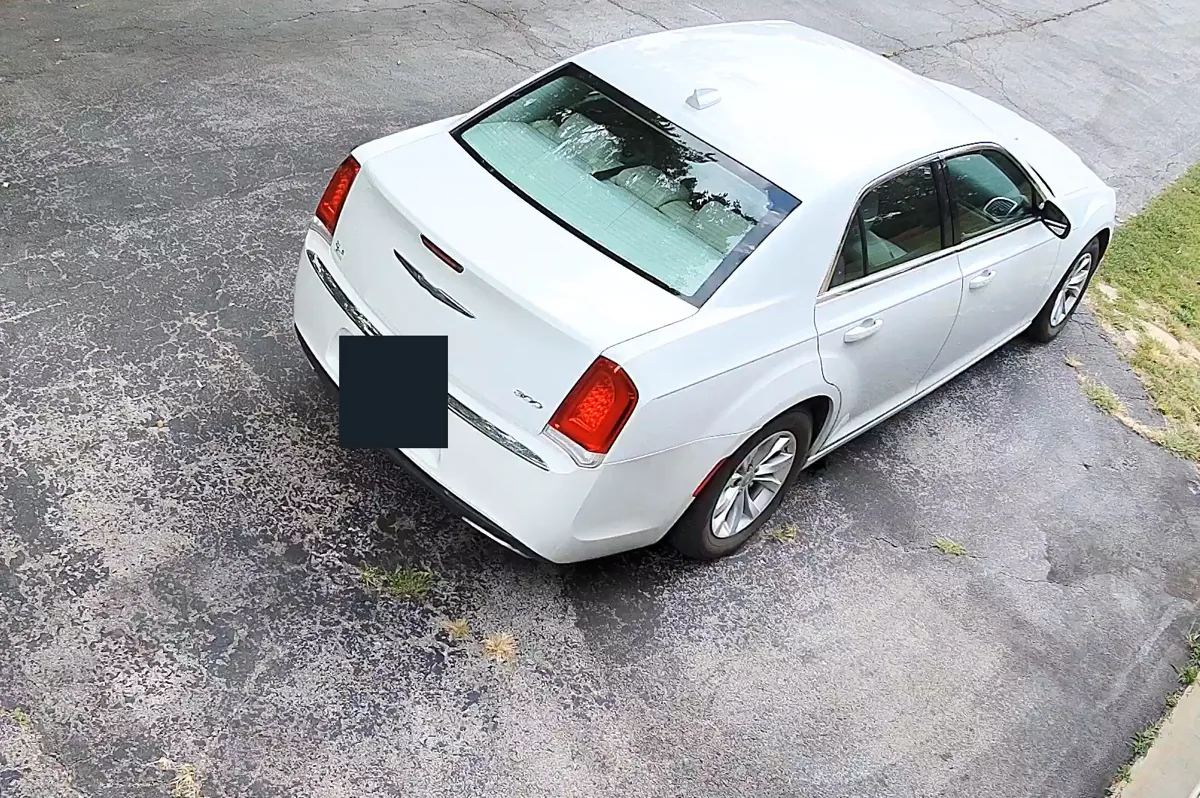
FROM A CAMERA TO THE BIG PICTURE
A shared operational view gives your team the context to decide what needs attention.
Organize cameras by site, check system status and open the authorized view you need. Move between live video, recordings and camera events.
Review activity, investigate alerts, search retained information and compare patterns in reports. Return to the underlying camera context as you work.
Control user access, manage Edge deployments, configure analytics and select optional Intelligence capabilities for supported workflows.
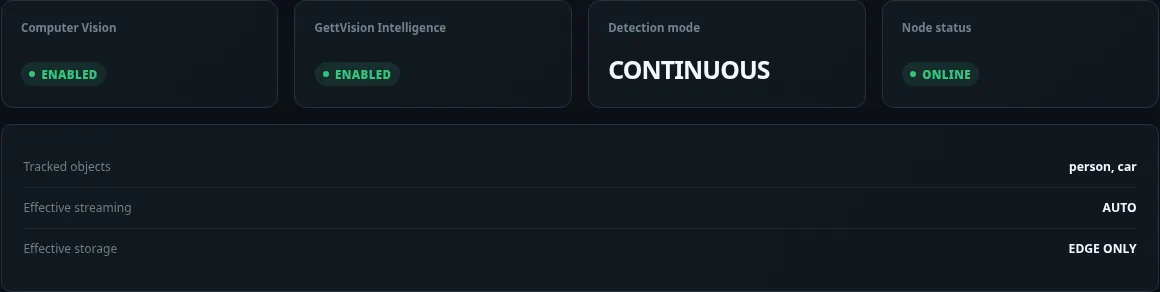
SITE A / EDGE NODE 2
Three views of the same operation: how long activity lasted, how much overlapped, and which alerts were recorded.
September 16, 2026 · Hourly · US Central time. Scope is limited to Driveway and cam 2 at Site A on Edge Node 2. The retained, completed intervals behind the duration and concurrency charts in this snapshot come from Driveway.
These are captured report values, not live dashboards. Missing or incomplete evidence limits what a chart can show; an absent hour does not prove that nothing happened.
01 / HOW LONG?
See how much of each hour contains recorded people or vehicle activity. GettVision merges overlapping completed event intervals on the same camera, so simultaneous detections do not count the same camera time twice.
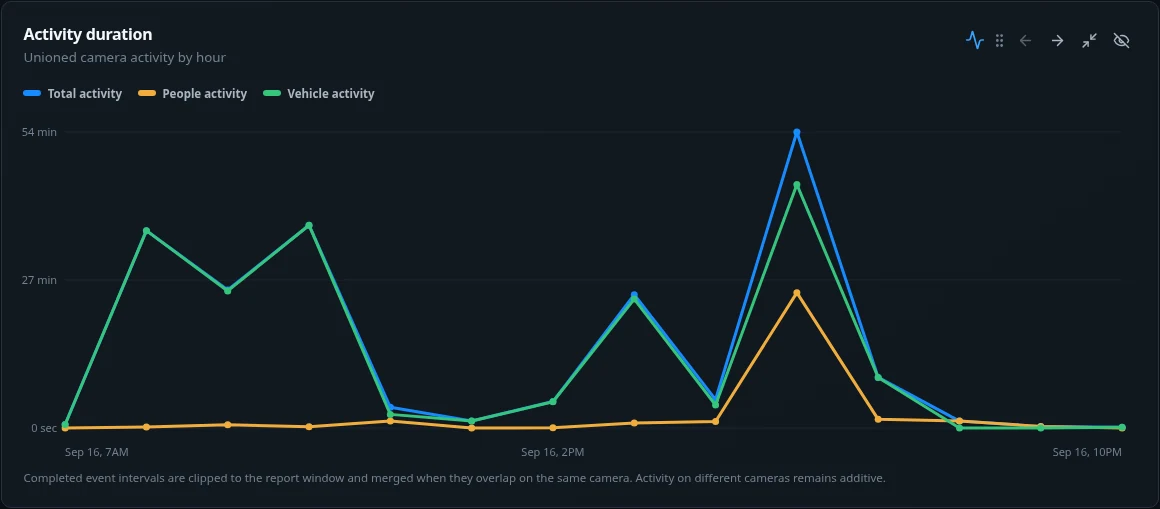
Compare total, people and vehicle activity over time. The people and vehicle lines can overlap, so adding them may exceed the total line. Across multiple cameras, each camera’s active time is added separately.
When was the camera view busiest? Was activity brief or sustained? This measures time with eligible activity, rather than unique visitors or the number of detections.
| Hour | Total minutes | People minutes | Vehicle minutes |
|---|---|---|---|
| 7:00 AM | 0.63 | 0.00 | 0.63 |
| 8:00 AM | 35.70 | 0.19 | 35.70 |
| 10:00 AM | 24.97 | 0.58 | 24.79 |
| 11:00 AM | 36.68 | 0.22 | 36.68 |
| 12:00 PM | 3.74 | 1.28 | 2.46 |
| 1:00 PM | 1.25 | 0.00 | 1.25 |
| 2:00 PM | 4.78 | 0.04 | 4.75 |
| 3:00 PM | 24.10 | 0.89 | 23.31 |
| 4:00 PM | 5.15 | 1.17 | 4.16 |
| 5:00 PM | 53.54 | 24.48 | 44.04 |
| 6:00 PM | 9.14 | 1.56 | 9.14 |
| 7:00 PM | 1.25 | 1.25 | 0.00 |
| 8:00 PM | 0.27 | 0.27 | 0.00 |
| 10:00 PM | 0.14 | 0.00 | 0.14 |
Values are rounded to two decimal places. Only returned hourly buckets are shown; gaps have not been filled with invented values.
02 / HOW MUCH AT ONCE?
See the maximum number of overlapping people or vehicle tracks on each camera within an hour. A higher cell means more eligible tracks overlapped in that camera’s view.

On a narrow screen, scroll the chart sideways to see every hour, or open the data table below.
In this Driveway snapshot, vehicle concurrency reaches four in the 5 PM bucket; people concurrency reaches three in the 6 PM bucket. Those are separate peaks, not a combined count of seven.
When did activity bunch together? Compare busy periods without treating repeated detections as new visitors. Counts remain camera-specific; they are not a deduplicated site-wide headcount. Tracks without a trustworthy end time are omitted.
| Hour | Camera | People peak | Vehicle peak |
|---|---|---|---|
| 7:00 AM | Driveway | 0 | 1 |
| 8:00 AM | Driveway | 2 | 3 |
| 10:00 AM | Driveway | 2 | 1 |
| 11:00 AM | Driveway | 2 | 2 |
| 12:00 PM | Driveway | 1 | 2 |
| 1:00 PM | Driveway | 0 | 1 |
| 2:00 PM | Driveway | 1 | 1 |
| 3:00 PM | Driveway | 2 | 3 |
| 4:00 PM | Driveway | 2 | 3 |
| 5:00 PM | Driveway | 2 | 4 |
| 6:00 PM | Driveway | 3 | 3 |
| 7:00 PM | Driveway | 1 | 0 |
| 8:00 PM | Driveway | 2 | 0 |
| 10:00 PM | Driveway | 0 | 1 |
People and vehicle peaks are calculated independently. The chart does not establish unique identities across cameras.
03 / WHAT NEEDED ATTENTION?
See when configured alert rules matched activity, grouped by severity. Each alert rule and event pair counts once, even if it produced messages for several recipients.
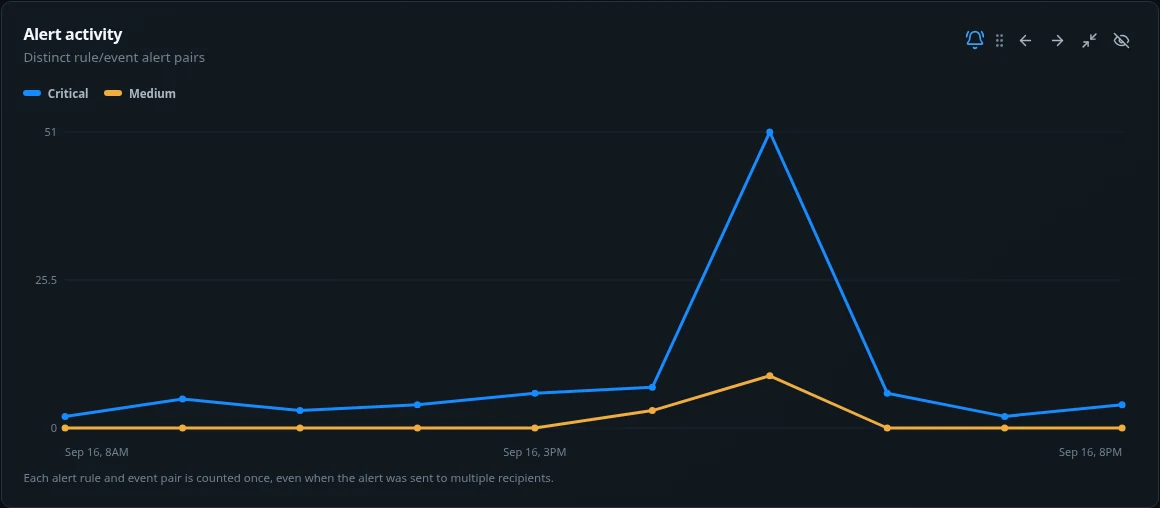
The lines separate the recorded severity levels. In this snapshot, the 5 PM bucket contains 51 Critical pairs and 9 Medium pairs. Severity reflects the configured rule.
When did alert workload rise? Which periods deserve review? An event can match more than one rule, so these are not unique incident counts, email delivery totals or proof that a condition was confirmed by a person.
| Hour | Severity | Rule/event pairs |
|---|---|---|
| 8:00 AM | Critical | 2 |
| 10:00 AM | Critical | 5 |
| 11:00 AM | Critical | 3 |
| 12:00 PM | Critical | 4 |
| 3:00 PM | Critical | 6 |
| 4:00 PM | Medium | 3 |
| 4:00 PM | Critical | 7 |
| 5:00 PM | Medium | 9 |
| 5:00 PM | Critical | 51 |
| 6:00 PM | Critical | 6 |
| 7:00 PM | Critical | 2 |
| 8:00 PM | Critical | 4 |
The report excludes test notifications and counts each recorded rule/event pair once, regardless of recipient count.
YOUR QUESTION / YOUR CHART
Create custom charts from supported analytics and GettVision Intelligence. Start with a question in everyday language, then review how it will be measured.
Use supported detections, activity duration and camera or zone context. Compare periods, cameras or sites using the filters available to your team.
“Show person detections by hour of day for each weekday.”
Example question · Counts detections, not unique people.
Chart supported recorded Intelligence matches, or use compatible analysis of retained event evidence to group activity into useful categories.
“Show recorded Cell Phone Use alert matches by day.”
Example question · Requires matching retained Intelligence results.
In Central’s Reports view, select Create custom chart. Name the chart and describe what you want to see. Select the intended site, camera and date range in the report filters.
Select Interpret chart. Check the proposed metric, grouping, categories and evidence limits. Clarify an ambiguous request before saving.
Select a compatible visualization, such as a line chart, bars or heatmap. Use Preview with current filters to check the result against the scope you intended.
Save the chart, choose its size and arrange it in your dashboard. Reuse the saved definition as you change authorized report filters. Export available chart data when you need to share the result.
For supported questions that require new Intelligence analysis, saving a chart can start evaluation of retained event evidence. Results fill in as analysis completes. This reporting workflow does not itself create alerts or send email.
Available evidence and supported measurements determine what can be charted. Review the interpretation and any evidence limits so the chart answers the question you actually asked.
Edge supplies local processing and evidence. Optional Intelligence adds interpretation. Bridge is being developed to bring supported existing VMS environments into this same operational view.